Tuesday, March 29, 2016

10 Best Web font/typography services

10 Best Web font/typography services
Web Fonts/typography refers to the use of fonts on the World Wide Web. They mostly are open-source/paid fonts and optimized for the websites. Using Web font creates diversity in websites over all design. You can download them then link them to your site or you can use fonts API to use them. Here best of 10 web font source given bellow. Read on:


10 Best Web font/typography services


Google Web Fonts is a utility allowing your browser all the fonts available via the Google Fonts API. All fonts in the directory are available for use on your website under an open source license and are offered and shored up by Google. This is the best source for web fonts.

This website comes with hundreds of thousands of desktop and web font products for you to preview, purchase and download. Here, you can also learn about new typeface releases and find typographic tips and techniques. It also offers daily dose of typography from the contribution of other contributors as well. You will learn about type from print, web, mobile and more.

Font Squirrel is an assortment of free fonts designed for commercial use. It hunts for truly free, and high quality fonts over internet. It also has world’s greatest singular of its type. It you have a font-face license for your fonts, its generator can be used to create webkits or to tweak your existing kits to improve rendering and file sizes.

Brick is an open source webfont service that offers fonts in their original shape for high quality rendering across all browsers. Here, the URL formatting rules are similar to those found at Google Web Fonts. The Brick offered fonts are clones of the original, converted without modification to WOFF format for high quality rendering and quick loading across all latest browsers.

Edge Web Fonts is a free service providing access to a huge assortment of fonts for your web site. It is one of the Edge Tools & Services from Adobe and it is free for use and unlimited. Here, you just need to choose the fonts you like to use on your website and copy a line of JavaScript into your site’s HTML to enable them and you are all set to begin using the fonts in your site’s CSS.

FontDaddy is one of the best online resource for free fonts. FontDaddy is freeware, with public domain and open source fonts. It offers you download hundreds of thousands of fonts for Mac and PC for free. Here, you can browse all the free fonts in its library by font category or font name, besides you can also discover new and popular fonts here.

Open Font Library aims at promoting your freedoms as it links to the use of type. All of the fonts found here are featured with the freedom to use, study, share and remix. all these fonts can easily be included on your website’s design. It also allows you to contribute with your fonts after signing up to become a member.

Fonts For Web is a free web fonts sharing website that automatically converts your uploaded TTF into web fonts for instant use. It contains more than 1000 free webfonts inside its archive. Here, you can discover impeccable web fonts for your websites and share your own as well. You just need to click ‘font category’, select the font you like, and download the package and unzip it for use.
Dafont  is an archive of freely downloadable fonts where you can browse alphabetically, by style, by author or by popularity. The fonts offered here are their author’s property, and are either freeware, shareware, demo versions or public domain. The license mentioned above the download button is just a preamble.
Typekit can be regarded as the easiest way to use real fonts on the internet. It is a subscription-based service for linking to high-quality Open Type fonts from some of the world’s leading and best type foundries. It brings about hundreds of fonts from foundry partners into one assortment for fast browsing, easy use on the web or in applications, and limitless typographic inspiration.
So which service you use and which one you are going to use don't forget to mention :)

Friday, March 11, 2016

10 Best IDE Apps for Android

10 Best IDE Apps for Android
IDE commonly refer to An integrated development environment like a software application that provides comprehensive facilities to programmers for software development. IDE normally consists of a source code editor, build automation tools and a debugger. Once there were IDE just for computer but Now days there is a lot of IDE can be found for mobile and tabs too. And here I'm featuring 10 Best IDE Apps for Android devices. This list filtered down to only 10 best IDE's from vast Play store's IDE all collection. All best IDE names and information given below. Read on

10 Best IDE Apps for Android


1. DroidEdit 
DroidEdit is a very lucrative source code editor which makes use of syntax highlighting for manifold languages that include: C/C++, Java, C#, HTML, Javascript, Python and SQL. Besides, it also has a number of colorful themes, search and replace, auto and halt indentation, and keyboard shortcuts among many other belongings. Although DroidEdit is quite useful editor for Android but this list is aimed to present some of the best utilities which could be used as substitute to DroidEdit. Pro version unlocks most of cool features.

2. Java Code Viewer 
Java Code allows you view java code, besides you can also view C#, C/C++, CSS, PHP, ASP and JavaSCript. The tool has fine syntax highlighting, word find, and line numbers. Therefore, if you are seeking a quite easy, simple, easy to use code viewer, Java Code Viewer might be the tool made for you.

3. AIDE
AIDE is an awesome tool allowing you program Android applications directly on your Android device. In this way, the users basically cut out the middleman of having to use a computer at all. The tool is totally compatible with Eclipse projects. Hence it is easy to transfer your projects from your system to your mobile device. Moreover, AIDE contains plenty of features and most important of them is Dropbox compatibility.

4. Terminal IDE 
Terminal IDE is an extremely cool IDE for programming Java/Android tool. It includes features like Custom ASCII on-screen ‘soft’ keyboard and a generic external ‘hard’ keyboard key mapper. Hence, user is facilitated to use CTRL, ALT, ESC and other keys that aren’t on the usual Android keyboard.

5. C4droid  
C4droid is a nice C compiler that can be used on your Android device. It makes use of the gcc compiler which is often used on Unix. C4droid can also compile C++, but at the moment you need to root your phone to get access to this attribute. The tool is a productive way to compile your C code on the fly.

6. 920 Text Editor
920 Text Editor runs of Android to provide a robust text editor to its users who can get benefits from the tool anywhere and anytime. With this utility, you can easily view or edit your code, along with use it as e-book reader to open text of any text file. It features syntax highlighting which includes: ASP, ActionScript, C/C++, C#, Erlang, CSS, JavaScript, Java, JSP, Perl, Pascal, Fortran, ColdFusion.

7. Syntax Highlighted Code Editor 
Syntax Highlighted Code Editor is a lightweight editor supporting HTML, CSS, JavaScript and PHP besides, C/C++, Java, and Python. Some of its attributes include search and replace, undo and redo, and on-screen keyboard helpers. On the whole, Syntax Highlighted Code Editor is an extremely simple editor, but is somehow overshadowed by free versions of compilers and IDEs.

8. Deuter IDE 
DeuterIDE comes with its notion ‘Light platform, Heavy coding’, as it is rich-featured IDE with support for up to 40 languages. It's an IDE that can be utilized to program in a plethora of languages, The features include: syntax highlighting, automatic indentation and dropbox sync. It also integrates virtual keys for generally used programming symbols, making good use of the virtual keyboard with it.

9. Android Java Editor 
Android Java Editor is aimed at providing simple editing solution. With this client users can create projects, and edit the source code and xml files directly on their device. As it is merely an editor, users can’t really compile and run the application using Android Java Editor.

10. Code Peeker 
Code Peeker is a very lightweight code reader allowing you to view code really rapidly. It comes with supporting syntax highlighting for a plethora of languages, and when it doesn’t support the language, it will still open the file in the form of plain text. The tool is quite lucrative when you are programming on your computer and wish to use your phone as an external monitor to keep other code open as a reference.

So which one you use and which one I didn't mentioned please note in comment. :)

Monday, February 15, 2016

Add featured post slider in Blogger (homepage)

Add featured post slider in Blogger (homepage)
Got some worth mentioning posts in your Blogger blog, and want to represent them with style here I am presenting to you a high end very popular featured post/content slider for your Homepage. Featured post sliders are seen in many blogs because they create a very good impression about your site and also increase the beauty of landing page, as well as they reduce bounce rate. And speaking of Featured post slider I personally like Coin Slider very much and recently I integrated it to Blogger blogs. I like Coin Slider because it has many advantages like:
  •     Unique transition effects
  •     Valid markup
  •     Flexible configuration
  •     Auto slide
  •     Navigation box
  •     Lightweight (8kb only)
  •     Linking images
  •     Fully customizable using CSS
  •     Compatible with Internet Explorer 6+, Firefox 2+, Safari 2+, Google Chrome 3+, Opera 9+   
  •     Free to use under MIT license
  •     Compatible with Android and iPhone
Let's see how it looks like and how to install it to Blogger site. The difficulty level is intermediate, Read on:

Add featured post slider in Blogger (homepage)


Add featured post slider in Blogger (homepage)

Live Demo: Click Here

Codes for copy:


<!-- Crawlist.net Coin Slider CSS -->
<style>
.tsc_clear { clear:both; padding:0; margin:0; width:100%; font-size:0px; line-height:0px;}
.sliderContainer { margin:0; padding:0;}
.coin-slider { zoom: 1; position: relative; width:800px;}
.coin-slider a{ text-decoration: none; outline: none; border: none; }

.cs-buttons { font-size: 0px; padding: 10px; float: left;}
.cs-buttons a { margin-left: 5px; height: 10px; width: 10px; float: left; border: 1px solid #B8C4CF; color: #B8C4CF; text-indent: -1000px; }
.cs-active { background-color: #B8C4CF; color: #FFFFFF; }

.cs-title { font-size: 22px; width: 778px; padding: 11px; background-color: #000000; color: #FFFFFF; }

.cs-prev,
.cs-next { background-color: #000000; color: #FFFFFF; padding: 0px 10px; }</style>

<!-- Crawlist.net Javascript Library -->
<script type="text/javascript" src="https://c7bef9b379dc0bc48bbf02631cdf78357be11070.googledrive.com/host/0B6ENtyPAfM-tY2l5ekxXcWV4cHM/"></script> <!-- jQuery Library (do not call twice on same page) -->

<!-- Crawlist.net Coin Slider JS -->
<script type="text/javascript" src="https://94e98a2008aa792477d832018a4e10511754c51e.googledrive.com/host/0B6ENtyPAfM-tUUlObzZ0MU91eVk/"></script>

<!-- Crawlist.net Coin Slider Settings -->
<script type="text/javascript">
$(function() {
    $('#coin-slider').coinslider({             
        width: 800, // width of slider panel in pixels
        height: 400, // height of slider panel in pixels
        navigation: true, // prev next and buttons
        spw: 7, // squares per width
        sph: 5, // squares per height
        delay: 3000, // delay between images in ms (3000 = 3 seconds)
        sDelay: 30, // delay beetwen squares in ms
        opacity: 0.7, // opacity of title and navigation
        titleSpeed: 500, // speed of title appereance in ms
        effect: 'random', // random, swirl, rain, straight
        hoverPause: true // pause on hover 
    });
});
</script>

  <!-- Crawlist.net Coin Slider Start -->
  <div style="width:800px; margin:0 auto; padding:10px; position:relative;"> <!-- define slider container width (strict enforce) -->
  <div class="sliderContainer">
    <div id="coin-slider">
      
        <a href="post link"><img src="image link" width="800" height="400" /> <span>place text</span></a>
        <a href="ipost link"><img src="image link" width="800" height="400" /> <span>place text</span></a>
        <a href="post link"><img src="image link" width="800" height="400" /> <span>place text</span></a>
    </div>
    <div class="tsc_clear"></div>
  </div>
  </div>
  <!-- Crawlist.net Coin Slider End -->
 

Adding this widget 
  • First log into Blogger, select your blog,
  • Go to ‘Layout’ tab and click ‘add a gadget’ from the below space of header
  • Select ‘HTML/JavaScript’ from pop up page;
  • Copy and paste given codes in content box, configure and Save
  • Now hit ‘View blog’ and hover mouse on slider widget’s editing icon wrench;
  • And look bottom of web browser and you will see a line, that contains Widget ID;
  • Detect your widget id it generally looks like (HTML1, HTML2, HTML3, Blog1) see image below;
  • Then, go to ‘Template’ tab, ‘Edit HTML’ and search for your widget ID (using Ctrl+F or Cmd+F) into code snippet;
  • You will see chunks of codes starts with <b:section and ends with </b:section>
Like this

<b:section class='tabs' id='crosscol' maxwidgets='1' name='Cross-Column' showaddelement='yes'>
        <b:widget id='WIDGET ID' locked='false' title='' type='HTML'>
          <b:includable id='main'>
  <!-- only display title if it's non-empty -->
  <b:if cond='data:title != &quot;&quot;'>
    <h2 class='title'><data:title/></h2>
  </b:if>
  <div class='widget-content'>
    <data:content/>
  </div>

  <b:include name='quickedit'/>
</b:includable>
        </b:widget>
      </b:section>

  • Identify them and place this line (see image) Before the codes chunk


<b:if cond='data:blog.url == data:blog.homepageUrl'>

  • and at the end of code this line

</b:if>

  • And Save template.
How to configure:
  • In "post link" place your links and add your post title in ‘place text’
  • In "image link" place your image link, you can host image on Blogger; just upload you image; preview them and from address bar copy image’s direct code and place them in Image link; otherwise use Tinypic-Upload your image; then copy links from ‘direct links for layout’. You should use images size of 800px width and 400px height bigger size will be scaled into this size.
  • You can delete a slide content by deleting <a> to </a>
  • You can add more slide by coping <a> to </a>
  • You can also change the default image size by changing value of height and width in case you will have change all height width values.
How it working on your blog don’t forget to mention and any question and feedback leave with comment. Goodluck...

Saturday, February 13, 2016

8 best WYSIWYG Text editors/Web based HTML Editors

8 best WYSIWYG Text editors/Web based HTML Editors
Now days we developers and clients demands to format text without inquire into code has long been on developers. That case Lightweight WYSIWYG Text and HTML Editors or web-based Rich Text editor we can use to solve this problem. There are a large number of these of editor can be found around web; here I presenting a short list of best WYSIWYG Text editors/Web based HTML Editors; read on:


8 best WYSIWYG Text editors/Web based HTML Editors


1. TinyMCE
TinyMCE is an open-source JavaScript HTML WYSIWYG editor. It’s easy to integrate, and is highly customisable with themes and plugins. TinyMCE is one of the more “complete” editors out there, offering an experience similar to MSWord.

2. CKeditor
CKeditor is the new FCKEditor. It’s a very powerful and sophisticated high performance WYSIWYG editor that offers editing features comparable to MSWord and Open Office.

3. NicEdit
NicEdit is an alternative to some of the larger, more complex WYSIWYG editors out there, with its small download size. It boasts many of the expected editor features and easily integrates into your site.

4. FreeTextBox
FreeTextBox  is an HTML editor specifically for ASP.NET. The look and feel of the editor is the most like Microsoft Word that you are likely to get. The free version does lack a couple further features.

5. OpenWYSIWYG
OpenWYSIWYG is a cross browser rich text editor with almost every editing capability. It features a sleek user interface including dropdowns and buttons. High on its features is its capacity to handle tables well, with different borders and colors.

6. The YUI Rich Text Editor
The YUI Rich Text Editor is a UI control from Yahoo that turns text area into fully functioning WYSIWYG editors. It comes in several different versions of varying features and complexity, but still manages to achieve a great user experience without a plethora of buttons.

7. MooEditable
MooEditable WYSIWYG editors fill that void by providing a simple but effective user experience to the user, by building on top of a well written JavaScript library.

8. Spaw Editor
Spaw Editor is a web-based in-browser WYSIWYG editor control that enables web site developers to replace a standard text area HTML control with full featured, fully customizable, multilingual, webbased WYSIWYG editor.

So what you use, which one is your favorite I didn’t mentioned don’t forget to mention :)

Tuesday, January 19, 2016

10 Best Code playgrounds/Online HTML Editors for developers

10 Best Code playgrounds/Online HTML Editors for developers
We use code playgrounds/online-cloud based HTML editors for instant web developing, creating snippets, or making use of existing code snippets for time saving, cloud base backup etc. Now days uses of online HTML editor is rising rapidly cause online playgrounds or code editors that provides instantly ready coding atmosphere through web applications that allow real time editing and previews of client-side codes for experimenting with CSS, HTML, PHP, JavaScript and instant result help you to develop useful web project and save them, sendboxing tools for testing, debugging and sharing your code snippets. Here I am presenting 10 of Best Code playgrounds/Online HTML Editors for developers; read on:

10 Best Code playgrounds/Online HTML Editors for developers

1. Codepen
CodePen offers the coolest user interface without costing money.  It’s a sophisticated playground for the front end side of the web. It’s all about inspiration, education, and sharing. The service highlights popular demonstrations and offers advanced functionality such as sharing and embedding.

2. CSSDesk
CSSDesk is an Online HTML5, CSS3 Sandbox. It allows people to quickly test snippets of CSS code, and watch the result appear live, offers account, cloud saving, pro features, clean interface and code preferences. It does not have lots of fancy features its simplicity gives focus on the things that matter.

3. Cloud9
Cloud9 IDE lets you code and chat together with your fellow developers, share your workspaces or keep them private. Set up your system without any hassle, Built-In Terminal For command-line wizardry, Language Tools Make writing code a breeze, Debugger, Configure your own UI, themes, run panel, Built-In Image Editor etc it’s the best premium IDE in the world.

4. JSFiddle
jsFiddle is a shell editor that eases writing JavaScript code by creating a custom environment select the framework MooTools, jQuery, Dojo, Prototype, YUI, Glow,Vanilla then start editing. It has ability to save, share and embedding the code. Unlike Codepen, JSFiddle got no live previews; You have to basically refresh the page by clicking on the play button.

5. JS Bin
JS Bin is a web-app specifically designed to help JavaScript and CSS coders to test snippets of code, debug the code collaboratively. JS Bin allows you to edit and test JavaScript and HTML. You can save, and send the URL to a peer for review or help.

6. ShiftEdit
ShiftEdit is an online IDE that syncs and backs up your code revisions. It supports real-time validation, sophisticated auto-complete, syntax checking, function definitions make programming a breeze All Browsers, Terminal, Customizable snippets, notes, change themes, Connect to your project files wherever they reside (FTP, SFTP, Dropbox, Google Drive, Clone a repository from Github/Bitbucket)

7. Dabblet
Dabblet is an interactive playground for quickly testing snippets of CSS and HTML code. It uses prefix free, so that you will not have to add any prefixes in your CSS code, save your work in Github, embed it in other websites and share it with others. It currently only supports modern versions of Chrome, Safari and Firefox.

8. Liveweave
Liveweave is a useful HTML5, CSS3 & JavaScript playground and a real-time editor packed with features such as having the capability to turn off its live preview, take better care of your eyesight with the night vision mode, offers over 20 JavaScript libraries, supports SVG, It also comes with a built-in ruler. It is a great tool to test, practice and share creations.

9. Editr
Editr is a HTML, CSS and JavaScript playground that you can host on your server. It is based on ACE Editor. Its super easy to setup. It supports multiple instances on one page. Configurations are available via JS object or HTML attributes supports 3 layout views: horizontal, vertical and single. First two are for live edit. Third one is for presentation. Editr is licensed under MIT License.

10. The HTML5 Playground
This service includes a library of code snippets you can explore to see HTML5 in action. They include some basic getting-started examples, such as the use of the HTML5 Doctype and the audio tag, including HTML5 elements such as range and date inputs and automated validation for email addresses and websites.

So what you use, which one is your favorite worth mentioning don’t forget to mention :)
Sunday, January 17, 2016

10 best FTP software to use

10 best FTP software to use
File Transfer Protocol is the most important function of any website it uses to transfer computer files between a client and server on a computer network. Aside of online file managers on hosting this is the only other option lefts for uploading files on server. There are lots of FTP software around this web but which one you going to choose, that’s why here is a list I providing about best FTP services. Read on:

10 best FTP software to use

1. FileZilla
FileZilla is the oldest and strongest FTP client that has been designed for the convenience in usage and with support for as many features as could be, while still being fast and reliable. The utility comes with support for firewalls and proxy connections along with SSL and Kerberos GSS security.

2. Core FTP
Core FTP is a safe FTP tool for Windows. It features FTP, SSL/TLS, SFTP via SSH, and HTTP/HTTPS Support. Secure FTP tools encrypt account data and data shifted across the internet, securing data from being observed or hinted across networks. Its free, secure FTP client provides you with a fast, easy, trustworthy way to update and keep your website via FTP.

3. WinSCP
WinSCP is a free SFTP and FTP client for Windows. It has the potential to copy files between a local and remote computer through multiple protocols which include: FTP, FTPS, SCP, SFTP. It can be used for all usual operations with files.

4. Cyberduck
Cyberduck is an open source FTP client for MAC with easy to use interface. Offers connect to FTP, SFTP, WebDAV, Amazon S3, Google Storage, Windows Azure, Rackspace Cloud Files and even Google Docs. Cyberduck comes with a bookmark manager and supports the Mac OS X Keychain and Bonjour networking.

5. FTP Rush
FTP Rush is the ultimate FRP/FXP/SFTP/TFTP client suite compatible with Windows. This tool is developed to suit any transfer requirement and lets you to rapidly upload and download files in all directions. It supports safe transfer including FTPS, SFTP, features include: support for FXP, tabbed interface, GUI Customization, Drag-and-Drop, Fast SFV checking on client side, and much more.

6. CuteFTP
CuteFTP is a client for relocating files between computer and a remote FTP server anywhere on the Internet. It allows you create, open, and edit HTML documents on your computer or a remote server within CuteFTP with the help of an integrated, color coded HTML editor.

7. FireFTP
FireFTP is free, secure, cross platform FTP/SFTP client for Mozilla Firefox providing easy and intuitive access to FTP/SFTP servers. It allows automatic reconnecting and resuming of transfer, searching, filtering, integrity checks, export, import, remote editing, file hashing, drag and drop, proxy support etc.

8. SmartFTP
SmartFTP shift files across the web. The client comes with features including Explorer like, customizable interface and support drag and drop functions. Client can copy files from one remote host to another (FXP). Remote-host directory information is cached for future viewing, and FTP URLs are supported by this client.

9. Gftp 
GFTP is a free file transfer system for NIX based systems. It features include, FTP and HTTP proxy server support, bookmarks menu to allow to rapidly connect to remote sites.

10. FTPDrive 
FTPDrive is a free file transfer client that allows creating virtual drive which links to configured FTP servers. In variant from other ftp-client this lets to operate with FTP from any program.

So which one you are going to use and which one is your favorite don’t forget to mention.

20 awesome responsive navigation examples for your website inspiration

20 awesome responsive navigation examples for your website inspiration
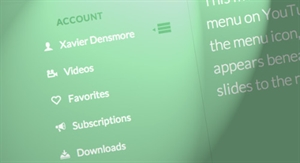
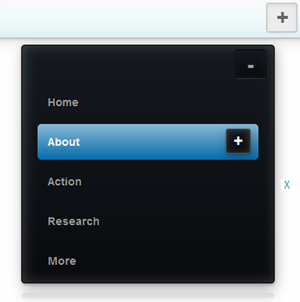
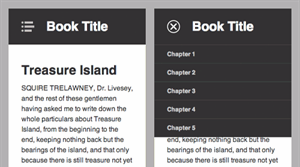
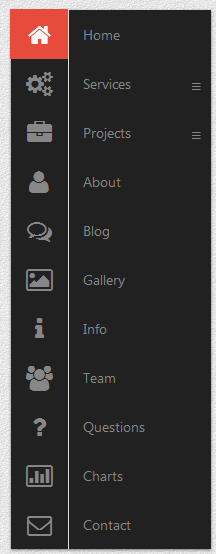
Are you looking for high-end responsive navigation menu for your web project take a look at these examples, demos, and tutorials on responsive navigation menus; they collected from all over the web and best of other menus around. Most of them compatible with any sites frameworks and they developed with CSS3, HTML5, JavaScript, jQuery by excellent hands. Read on:


20 awesome responsive navigation examples


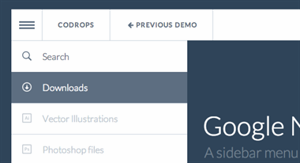
1. Google Nexus Website Menu 
responsive navigation examples for your website
(Demo)
(Download)

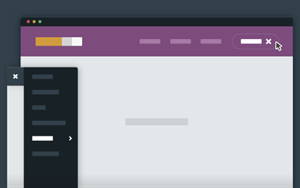
2. Secondary Sliding Navigation

responsive navigation examples for your website
(Demo)
(Download

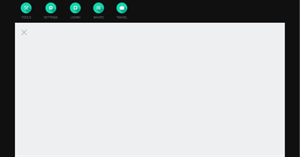
3. Off-canvas menu
responsive navigation examples for your website
(Demo)
(Download)

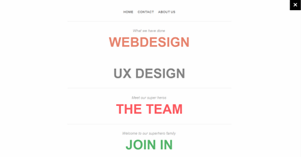
4. Slide from top full screen overlay navigation
responsive navigation examples for your website
(Demo)
(Download)

5. 3D Rotating Navigation
responsive navigation examples for your website
(Demo)
(Download)

6. Simple YouTube Menu Effect
responsive navigation examples for your website
(Demo)
(Download)

7. Swipeable Side Menu For the Web
responsive navigation examples for your website
(Demo)
(Download)

8. Dynamic Drop Down Navigation with Animation
responsive navigation examples for your website
(Demo+Download)

9. Responsive Slide Toggle Menu
responsive navigation examples for your website
(Demo+Download)

10. Responsive overlay menu navigation
responsive navigation examples for your website
(Demo)
(Download)

11. Off-Canvas Menu with a Twist
(Demo)
(Download)

12. jQuery Fly Side Menu 
(Demo+Download)

13. CSS3 navbar with Responsive Collapse
(Demo+Download)

14. Greedy Navigation
(Demo)
(Download)

15. Multi level CSS only push menu
(Demo)
(Download)

16. Slideout.js : Touch Slideout Navigation Menu
(Demo)
(Download)

17. Secondary Fixed Navigation
(Demo)
(Download)

18. Secondary Expandable Menu
(Demo)
(Download)

19. Easy As Pie – jQuery CSS3 Responsive Navigation
(Demo)
(Download)

20. Off-Canvas Navigation for Responsive websites with jQuery & CSS3
(Demo)
(Download)

21. Vertical Responsive Navigation with jQuery & CSS3
(Demo)
(Buy)

So what’s on your mind don’t forget to mention; which one you gonna use and if there is any recommendation leave with comment. Chill….

Popular Posts

Recent Posts

YouAreHere

Unordered List

Text Widget

Powered by Blogger.