Monday, February 15, 2016

Add featured post slider in Blogger (homepage)

Add featured post slider in Blogger (homepage)
Got some worth mentioning posts in your Blogger blog, and want to represent them with style here I am presenting to you a high end very popular featured post/content slider for your Homepage. Featured post sliders are seen in many blogs because they create a very good impression about your site and also increase the beauty of landing page, as well as they reduce bounce rate. And speaking of Featured post slider I personally like Coin Slider very much and recently I integrated it to Blogger blogs. I like Coin Slider because it has many advantages like:
  •     Unique transition effects
  •     Valid markup
  •     Flexible configuration
  •     Auto slide
  •     Navigation box
  •     Lightweight (8kb only)
  •     Linking images
  •     Fully customizable using CSS
  •     Compatible with Internet Explorer 6+, Firefox 2+, Safari 2+, Google Chrome 3+, Opera 9+   
  •     Free to use under MIT license
  •     Compatible with Android and iPhone
Let's see how it looks like and how to install it to Blogger site. The difficulty level is intermediate, Read on:

Add featured post slider in Blogger (homepage)


Add featured post slider in Blogger (homepage)

Live Demo: Click Here

Codes for copy:


<!-- Crawlist.net Coin Slider CSS -->
<style>
.tsc_clear { clear:both; padding:0; margin:0; width:100%; font-size:0px; line-height:0px;}
.sliderContainer { margin:0; padding:0;}
.coin-slider { zoom: 1; position: relative; width:800px;}
.coin-slider a{ text-decoration: none; outline: none; border: none; }

.cs-buttons { font-size: 0px; padding: 10px; float: left;}
.cs-buttons a { margin-left: 5px; height: 10px; width: 10px; float: left; border: 1px solid #B8C4CF; color: #B8C4CF; text-indent: -1000px; }
.cs-active { background-color: #B8C4CF; color: #FFFFFF; }

.cs-title { font-size: 22px; width: 778px; padding: 11px; background-color: #000000; color: #FFFFFF; }

.cs-prev,
.cs-next { background-color: #000000; color: #FFFFFF; padding: 0px 10px; }</style>

<!-- Crawlist.net Javascript Library -->
<script type="text/javascript" src="https://c7bef9b379dc0bc48bbf02631cdf78357be11070.googledrive.com/host/0B6ENtyPAfM-tY2l5ekxXcWV4cHM/"></script> <!-- jQuery Library (do not call twice on same page) -->

<!-- Crawlist.net Coin Slider JS -->
<script type="text/javascript" src="https://94e98a2008aa792477d832018a4e10511754c51e.googledrive.com/host/0B6ENtyPAfM-tUUlObzZ0MU91eVk/"></script>

<!-- Crawlist.net Coin Slider Settings -->
<script type="text/javascript">
$(function() {
    $('#coin-slider').coinslider({             
        width: 800, // width of slider panel in pixels
        height: 400, // height of slider panel in pixels
        navigation: true, // prev next and buttons
        spw: 7, // squares per width
        sph: 5, // squares per height
        delay: 3000, // delay between images in ms (3000 = 3 seconds)
        sDelay: 30, // delay beetwen squares in ms
        opacity: 0.7, // opacity of title and navigation
        titleSpeed: 500, // speed of title appereance in ms
        effect: 'random', // random, swirl, rain, straight
        hoverPause: true // pause on hover 
    });
});
</script>

  <!-- Crawlist.net Coin Slider Start -->
  <div style="width:800px; margin:0 auto; padding:10px; position:relative;"> <!-- define slider container width (strict enforce) -->
  <div class="sliderContainer">
    <div id="coin-slider">
      
        <a href="post link"><img src="image link" width="800" height="400" /> <span>place text</span></a>
        <a href="ipost link"><img src="image link" width="800" height="400" /> <span>place text</span></a>
        <a href="post link"><img src="image link" width="800" height="400" /> <span>place text</span></a>
    </div>
    <div class="tsc_clear"></div>
  </div>
  </div>
  <!-- Crawlist.net Coin Slider End -->
 

Adding this widget 
  • First log into Blogger, select your blog,
  • Go to ‘Layout’ tab and click ‘add a gadget’ from the below space of header
  • Select ‘HTML/JavaScript’ from pop up page;
  • Copy and paste given codes in content box, configure and Save
  • Now hit ‘View blog’ and hover mouse on slider widget’s editing icon wrench;
  • And look bottom of web browser and you will see a line, that contains Widget ID;
  • Detect your widget id it generally looks like (HTML1, HTML2, HTML3, Blog1) see image below;
  • Then, go to ‘Template’ tab, ‘Edit HTML’ and search for your widget ID (using Ctrl+F or Cmd+F) into code snippet;
  • You will see chunks of codes starts with <b:section and ends with </b:section>
Like this

<b:section class='tabs' id='crosscol' maxwidgets='1' name='Cross-Column' showaddelement='yes'>
        <b:widget id='WIDGET ID' locked='false' title='' type='HTML'>
          <b:includable id='main'>
  <!-- only display title if it's non-empty -->
  <b:if cond='data:title != &quot;&quot;'>
    <h2 class='title'><data:title/></h2>
  </b:if>
  <div class='widget-content'>
    <data:content/>
  </div>

  <b:include name='quickedit'/>
</b:includable>
        </b:widget>
      </b:section>

  • Identify them and place this line (see image) Before the codes chunk


<b:if cond='data:blog.url == data:blog.homepageUrl'>

  • and at the end of code this line

</b:if>

  • And Save template.
How to configure:
  • In "post link" place your links and add your post title in ‘place text’
  • In "image link" place your image link, you can host image on Blogger; just upload you image; preview them and from address bar copy image’s direct code and place them in Image link; otherwise use Tinypic-Upload your image; then copy links from ‘direct links for layout’. You should use images size of 800px width and 400px height bigger size will be scaled into this size.
  • You can delete a slide content by deleting <a> to </a>
  • You can add more slide by coping <a> to </a>
  • You can also change the default image size by changing value of height and width in case you will have change all height width values.
How it working on your blog don’t forget to mention and any question and feedback leave with comment. Goodluck...

Saturday, February 13, 2016

8 best WYSIWYG Text editors/Web based HTML Editors

8 best WYSIWYG Text editors/Web based HTML Editors
Now days we developers and clients demands to format text without inquire into code has long been on developers. That case Lightweight WYSIWYG Text and HTML Editors or web-based Rich Text editor we can use to solve this problem. There are a large number of these of editor can be found around web; here I presenting a short list of best WYSIWYG Text editors/Web based HTML Editors; read on:


8 best WYSIWYG Text editors/Web based HTML Editors


1. TinyMCE
TinyMCE is an open-source JavaScript HTML WYSIWYG editor. It’s easy to integrate, and is highly customisable with themes and plugins. TinyMCE is one of the more “complete” editors out there, offering an experience similar to MSWord.

2. CKeditor
CKeditor is the new FCKEditor. It’s a very powerful and sophisticated high performance WYSIWYG editor that offers editing features comparable to MSWord and Open Office.

3. NicEdit
NicEdit is an alternative to some of the larger, more complex WYSIWYG editors out there, with its small download size. It boasts many of the expected editor features and easily integrates into your site.

4. FreeTextBox
FreeTextBox  is an HTML editor specifically for ASP.NET. The look and feel of the editor is the most like Microsoft Word that you are likely to get. The free version does lack a couple further features.

5. OpenWYSIWYG
OpenWYSIWYG is a cross browser rich text editor with almost every editing capability. It features a sleek user interface including dropdowns and buttons. High on its features is its capacity to handle tables well, with different borders and colors.

6. The YUI Rich Text Editor
The YUI Rich Text Editor is a UI control from Yahoo that turns text area into fully functioning WYSIWYG editors. It comes in several different versions of varying features and complexity, but still manages to achieve a great user experience without a plethora of buttons.

7. MooEditable
MooEditable WYSIWYG editors fill that void by providing a simple but effective user experience to the user, by building on top of a well written JavaScript library.

8. Spaw Editor
Spaw Editor is a web-based in-browser WYSIWYG editor control that enables web site developers to replace a standard text area HTML control with full featured, fully customizable, multilingual, webbased WYSIWYG editor.

So what you use, which one is your favorite I didn’t mentioned don’t forget to mention :)

Tuesday, January 19, 2016

10 Best Code playgrounds/Online HTML Editors for developers

10 Best Code playgrounds/Online HTML Editors for developers
We use code playgrounds/online-cloud based HTML editors for instant web developing, creating snippets, or making use of existing code snippets for time saving, cloud base backup etc. Now days uses of online HTML editor is rising rapidly cause online playgrounds or code editors that provides instantly ready coding atmosphere through web applications that allow real time editing and previews of client-side codes for experimenting with CSS, HTML, PHP, JavaScript and instant result help you to develop useful web project and save them, sendboxing tools for testing, debugging and sharing your code snippets. Here I am presenting 10 of Best Code playgrounds/Online HTML Editors for developers; read on:

10 Best Code playgrounds/Online HTML Editors for developers

1. Codepen
CodePen offers the coolest user interface without costing money.  It’s a sophisticated playground for the front end side of the web. It’s all about inspiration, education, and sharing. The service highlights popular demonstrations and offers advanced functionality such as sharing and embedding.

2. CSSDesk
CSSDesk is an Online HTML5, CSS3 Sandbox. It allows people to quickly test snippets of CSS code, and watch the result appear live, offers account, cloud saving, pro features, clean interface and code preferences. It does not have lots of fancy features its simplicity gives focus on the things that matter.

3. Cloud9
Cloud9 IDE lets you code and chat together with your fellow developers, share your workspaces or keep them private. Set up your system without any hassle, Built-In Terminal For command-line wizardry, Language Tools Make writing code a breeze, Debugger, Configure your own UI, themes, run panel, Built-In Image Editor etc it’s the best premium IDE in the world.

4. JSFiddle
jsFiddle is a shell editor that eases writing JavaScript code by creating a custom environment select the framework MooTools, jQuery, Dojo, Prototype, YUI, Glow,Vanilla then start editing. It has ability to save, share and embedding the code. Unlike Codepen, JSFiddle got no live previews; You have to basically refresh the page by clicking on the play button.

5. JS Bin
JS Bin is a web-app specifically designed to help JavaScript and CSS coders to test snippets of code, debug the code collaboratively. JS Bin allows you to edit and test JavaScript and HTML. You can save, and send the URL to a peer for review or help.

6. ShiftEdit
ShiftEdit is an online IDE that syncs and backs up your code revisions. It supports real-time validation, sophisticated auto-complete, syntax checking, function definitions make programming a breeze All Browsers, Terminal, Customizable snippets, notes, change themes, Connect to your project files wherever they reside (FTP, SFTP, Dropbox, Google Drive, Clone a repository from Github/Bitbucket)

7. Dabblet
Dabblet is an interactive playground for quickly testing snippets of CSS and HTML code. It uses prefix free, so that you will not have to add any prefixes in your CSS code, save your work in Github, embed it in other websites and share it with others. It currently only supports modern versions of Chrome, Safari and Firefox.

8. Liveweave
Liveweave is a useful HTML5, CSS3 & JavaScript playground and a real-time editor packed with features such as having the capability to turn off its live preview, take better care of your eyesight with the night vision mode, offers over 20 JavaScript libraries, supports SVG, It also comes with a built-in ruler. It is a great tool to test, practice and share creations.

9. Editr
Editr is a HTML, CSS and JavaScript playground that you can host on your server. It is based on ACE Editor. Its super easy to setup. It supports multiple instances on one page. Configurations are available via JS object or HTML attributes supports 3 layout views: horizontal, vertical and single. First two are for live edit. Third one is for presentation. Editr is licensed under MIT License.

10. The HTML5 Playground
This service includes a library of code snippets you can explore to see HTML5 in action. They include some basic getting-started examples, such as the use of the HTML5 Doctype and the audio tag, including HTML5 elements such as range and date inputs and automated validation for email addresses and websites.

So what you use, which one is your favorite worth mentioning don’t forget to mention :)

Sunday, January 17, 2016

10 best FTP software to use

10 best FTP software to use
File Transfer Protocol is the most important function of any website it uses to transfer computer files between a client and server on a computer network. Aside of online file managers on hosting this is the only other option lefts for uploading files on server. There are lots of FTP software around this web but which one you going to choose, that’s why here is a list I providing about best FTP services. Read on:

10 best FTP software to use

1. FileZilla
FileZilla is the oldest and strongest FTP client that has been designed for the convenience in usage and with support for as many features as could be, while still being fast and reliable. The utility comes with support for firewalls and proxy connections along with SSL and Kerberos GSS security.

2. Core FTP
Core FTP is a safe FTP tool for Windows. It features FTP, SSL/TLS, SFTP via SSH, and HTTP/HTTPS Support. Secure FTP tools encrypt account data and data shifted across the internet, securing data from being observed or hinted across networks. Its free, secure FTP client provides you with a fast, easy, trustworthy way to update and keep your website via FTP.

3. WinSCP
WinSCP is a free SFTP and FTP client for Windows. It has the potential to copy files between a local and remote computer through multiple protocols which include: FTP, FTPS, SCP, SFTP. It can be used for all usual operations with files.

4. Cyberduck
Cyberduck is an open source FTP client for MAC with easy to use interface. Offers connect to FTP, SFTP, WebDAV, Amazon S3, Google Storage, Windows Azure, Rackspace Cloud Files and even Google Docs. Cyberduck comes with a bookmark manager and supports the Mac OS X Keychain and Bonjour networking.

5. FTP Rush
FTP Rush is the ultimate FRP/FXP/SFTP/TFTP client suite compatible with Windows. This tool is developed to suit any transfer requirement and lets you to rapidly upload and download files in all directions. It supports safe transfer including FTPS, SFTP, features include: support for FXP, tabbed interface, GUI Customization, Drag-and-Drop, Fast SFV checking on client side, and much more.

6. CuteFTP
CuteFTP is a client for relocating files between computer and a remote FTP server anywhere on the Internet. It allows you create, open, and edit HTML documents on your computer or a remote server within CuteFTP with the help of an integrated, color coded HTML editor.

7. FireFTP
FireFTP is free, secure, cross platform FTP/SFTP client for Mozilla Firefox providing easy and intuitive access to FTP/SFTP servers. It allows automatic reconnecting and resuming of transfer, searching, filtering, integrity checks, export, import, remote editing, file hashing, drag and drop, proxy support etc.

8. SmartFTP
SmartFTP shift files across the web. The client comes with features including Explorer like, customizable interface and support drag and drop functions. Client can copy files from one remote host to another (FXP). Remote-host directory information is cached for future viewing, and FTP URLs are supported by this client.

9. Gftp 
GFTP is a free file transfer system for NIX based systems. It features include, FTP and HTTP proxy server support, bookmarks menu to allow to rapidly connect to remote sites.

10. FTPDrive 
FTPDrive is a free file transfer client that allows creating virtual drive which links to configured FTP servers. In variant from other ftp-client this lets to operate with FTP from any program.

So which one you are going to use and which one is your favorite don’t forget to mention.

20 awesome responsive navigation examples for your website inspiration

20 awesome responsive navigation examples for your website inspiration
Are you looking for high-end responsive navigation menu for your web project take a look at these examples, demos, and tutorials on responsive navigation menus; they collected from all over the web and best of other menus around. Most of them compatible with any sites frameworks and they developed with CSS3, HTML5, JavaScript, jQuery by excellent hands. Read on:


20 awesome responsive navigation examples


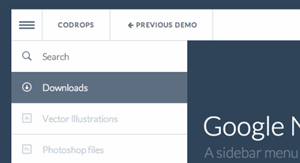
1. Google Nexus Website Menu 
responsive navigation examples for your website
(Demo)
(Download)

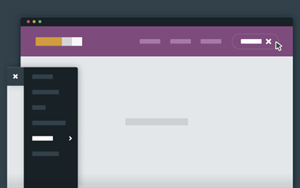
2. Secondary Sliding Navigation

responsive navigation examples for your website
(Demo)
(Download) 

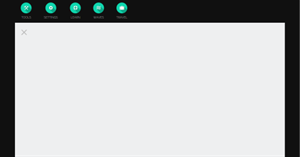
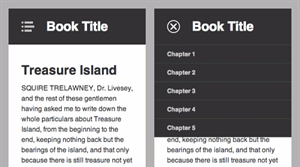
3. Off-canvas menu
responsive navigation examples for your website
(Demo)
(Download)

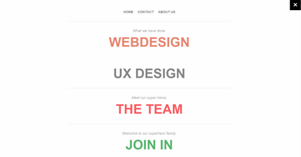
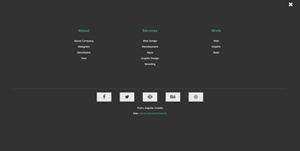
4. Slide from top full screen overlay navigation
responsive navigation examples for your website
(Demo)
(Download)

5. 3D Rotating Navigation
responsive navigation examples for your website
(Demo)
(Download)

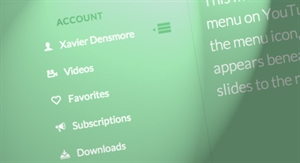
6. Simple YouTube Menu Effect
responsive navigation examples for your website
(Demo)
(Download)

7. Swipeable Side Menu For the Web
responsive navigation examples for your website
(Demo)
(Download)

8. Dynamic Drop Down Navigation with Animation
responsive navigation examples for your website
(Demo+Download)

9. Responsive Slide Toggle Menu
responsive navigation examples for your website
(Demo+Download)

10. Responsive overlay menu navigation
responsive navigation examples for your website
(Demo)
(Download)

11. Off-Canvas Menu with a Twist
(Demo)
(Download)

12. jQuery Fly Side Menu 
(Demo+Download)

13. CSS3 navbar with Responsive Collapse
(Demo+Download)

14. Greedy Navigation
(Demo)
(Download)

15. Multi level CSS only push menu
(Demo)
(Download)

16. Slideout.js : Touch Slideout Navigation Menu
(Demo)
(Download)

17. Secondary Fixed Navigation
(Demo)
(Download)

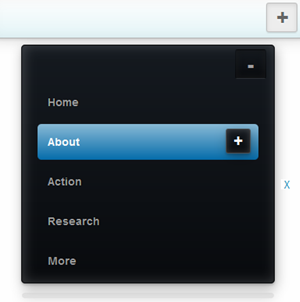
18. Secondary Expandable Menu
(Demo)
(Download)

19. Easy As Pie – jQuery CSS3 Responsive Navigation
(Demo)
(Download)

20. Off-Canvas Navigation for Responsive websites with jQuery & CSS3
(Demo)
(Download)

21. Vertical Responsive Navigation with jQuery & CSS3
(Demo)
(Buy)

So what’s on your mind don’t forget to mention; which one you gonna use and if there is any recommendation leave with comment. Chill….

Saturday, January 16, 2016

10 Best WYSIWYG Editors to use

10 Best WYSIWYG Editors to use
There is no beef between hand-coding HTML software and WYSIWYG HTML editing tools. But hand-coding can be hypocritical for beginners and uneasy for professionals. And that case What You See Is What You Get editor’s demand is undeniable. There are many WYSIWYG tool can be found on web but which one is the best. Here I sorted those softwares and presenting to you, read on:

10 Best WYSIWYG Editors to use

 
1. Adobe Dreamweaver
Dreamweaver is one of the most well-known WYSIWYG editors around. It is a staple of many web development firms around the world and for some can be considered almost an industry-standard for WYSIWYG.

2. Kompozer
Kompozer is designed to be extremely easy to use, making it ideal for people without technical computer skills who want to create an attractive professional looking web site without needing to know HTML or web coding.

3. BlueGriffon
BlueGriffon is a neat WYSIWYG editor that is both free and uses the same rendering engine that Firefox uses, meaning that your pages will come out looking exactly like its preview in Firefox, W3C-compliant, it supports CSS2 and CSS3, offers a great CSS editor, including XHTML 5.

4. Aloha Editor
Aloha is a very interesting visual editor that allows you to edit directly from the front end of your site; meaning no coding experience necessary. Aloha is compatible with all main browsers (IE, Firefox, Chrome, Safari, Opera) and is another solid solution.

5. Flux
Flux is a Mac WYSIWYG editor that has received high praise for being a powerful editor. Flux's interface offers a fine degree of control over editing everything from the margins and padding to overall size of elements including altering CSS code with simple mouse movements, offers dual-pane editing (hand-editing and drag-and-drop editing)

6. Amaya
Amaya is another W3C-compliant, Open Source solution that can be run on Windows. It offers HTML, CSS and XML validators, and in fact validates HTML as you build pages - an extremely useful function. Websites can be seen in a tree structure, and finished pages can be viewed in a "Page Preview" function.

7. Artisteer
It is a powerful and unique editor known for its ability to generate very aesthetically pleasing templates in only a few minutes. It does not require any formal coding knowledge to operate.

8. SnapEditor
SnapEditor is a unique browser-based editor that lets you edit in realtime inside of the web page you are editing. It was created with the aim of using clean code All Server-based.

9. Net Objects Fusion
It is powerful web-building software that uses an intuitive interface and has interesting capabilities like Google Analytics and shopping cart integration.

10. BestAddress HTML Editor
It has multiple editing modes, from WYSIWYG to simple code to shared view. Also allows you to edit sites directly from your server.

So what you use and witch one is your favorite don’t forget to mention :)

10 Best HTML Editors for Web Developers

10 Best HTML Editors for Web Developers
We web developers regularly research ways to improve our website’s design. Practice and playing with codes we actually get this research done. Generally we use Notepad++ but there’s lots of alternative can be found around the web. Here in this article I presenting a narrowed down list of web development, coding HTML’s software and services that help developers very much. Read on-


10 Best HTML Editors for Web Developers

1. Notepad++
Notepad++ is a notepad replacement with the ability to highlight and check code syntax. It also supports tabbed file editing. It’s the great first choice for programmers.

2. Bracket
A modern, open source text editor that understands web design, Its lightweight, yet powerful, modern text editor, Inline Editors, Live Preview, Preprocessor Supports.

3. Coffeecup HTML Editor
It’s a fully-fledged web code editor with some unique functionality like a smooth workflow for adding Structured Data, highlight corresponding code, edit components that update everywhere etc.

4. Sublime Text
Is an advanced text editor that has a slick interface with advanced search functionality and advanced viewing modes; Supports Windows/Mac/Linux.

5. ConTEXT
Is a simple yet powerful notepad replacement, It has most of the same functionality as Notepad++, and a few additional features like the ability to record macros.

6. UltraEdit
UltraEdit is another code geared text editor. It supports extremely large files and even hex files. Runs on Windows/Mac/Linux, intuitive user interfaces.

7. Topstyle
It’s a HTML5 and CSS3 focused editor with syntax highlighting, auto completion, and a nifty feature that allows you to click on classes and find styles defined for the classes.

8. Coda 2
Coda is a Mac-based editor that allows code-folding, has auto-complete and an in-built SWL editor.

9. Espresso
Espresso is another Mac-based editor with real-time preview functionality and code-folding.

10. Emacs
Emacs is a Linux specific text editor with a high degree of extensibility and customizability. It is one of the best known Linux text editors.

So what you use and witch one is your favorite don’t forget to mention :)

Popular Posts

Recent Posts

YouAreHere

Unordered List

Text Widget

Powered by Blogger.